
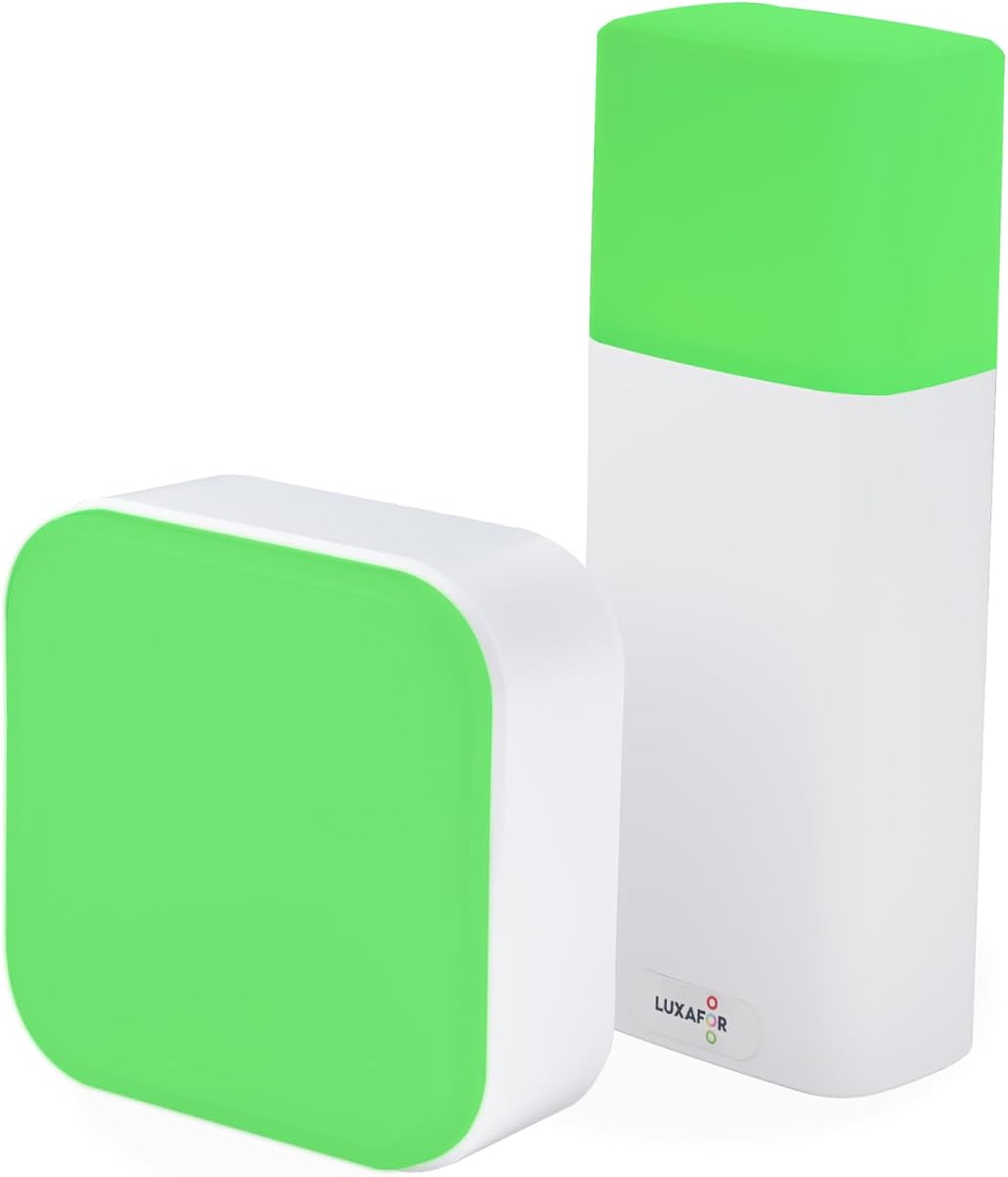
LED Busy Light Status Indicator Green Red
4.6Editor score
Touch sensitive base controls
Dimmable brightness settings
Compact desktop design
This guide compares the top busy lights for office setups, highlighting key features and compatibility with major platforms to help you choose the right one.
Finding the right busy light for office environments ensures your colleagues know when you are focused. These devices use visual signals to minimize interruptions and boost productivity across modern workspaces effectively.
We compared ten leading models based on connectivity, color options, and ease of installation. Our analysis covers USB and wireless options, helping you find a solution that fits your specific workflow needs.
Each pick highlights unique strengths like software integration or manual controls. Please note that prices fluctuate frequently, so verify current offers before purchasing to secure the best deal available today.
4.6Editor score

4.3Editor score
4.2Editor score
This table provides a side-by-side overview of all ten models, highlighting their primary use cases and connection types to help you quickly identify the best fit for your workspace.


This clip-on light provides a straightforward way to signal availability without complex setups. It features a tall tube design that makes the status visible from a distance across a busy office floor.
We may earn a commission when you buy through this link, at no additional cost to you.
The metal clip allows for easy attachment to monitors or desks, while the long USB cable offers flexible placement options. Red indicates busy and green indicates available, ensuring clear communication with teammates.
While it lacks software integration for automatic status updates, the manual controls are reliable and intuitive. This trade-off is acceptable for users who prefer a plug-and-play solution without IT dependencies.
Anyone looking for an affordable and easy-to-use indicator should consider this model. It effectively reduces interruptions during deep work sessions by clearly showing when you are unavailable for conversation.
The metal clip grips most monitor borders securely without tools or adhesive, allowing you to move the light as your desk setup changes.
High brightness LEDs ensure your status is seen even in well lit offices, preventing accidental interruptions during critical tasks.
We may earn a commission when you buy through this link, at no additional cost to you.
This device integrates deeply with popular unified communication platforms to automatically reflect your presence status. It combines a visual indicator with a built-in ringer, ensuring you never miss an important call or chat notification.
We may earn a commission when you buy through this link, at no additional cost to you.
The software supports major platforms like Microsoft Teams and Zoom, adjusting colors based on your current activity. The round form factor is subtle on the desk, and the ringer provides an audio cue even without a headset.
It does require installing free software which may be a hurdle for IT locked environments. However, the automation benefits outweigh the setup effort for most professional users relying on these tools daily.
Teams using UC platforms will find this model invaluable for streamlining communication. It ensures your availability is always accurate without manual adjustments, saving time and reducing workplace friction.
The software automatically changes the light color based on your status in Teams or Zoom, keeping your availability accurate at all times.
Built-in ringtones alert you to incoming calls so you can answer quickly even if you are focused and not wearing a headset.
We may earn a commission when you buy through this link, at no additional cost to you.
This option offers exceptional value with a simple touch interface and adjustable brightness settings. It is ideal for home offices or small teams that need a basic signal without complex software dependencies or high costs.
We may earn a commission when you buy through this link, at no additional cost to you.
You can tap the top to switch between red and green or long press to adjust brightness levels. The compact design fits neatly on any desk, and the modern look adds a stylish touch to your workspace.
Since it does not sync with software, you must manually change the light when your status changes. This is a minor inconvenience for users who want a reliable and cheap indicator without setup hassles.
Budget-conscious buyers looking for a stylish and functional indicator will love this pick. It provides clear visual signals and easy controls at a fraction of the cost of more advanced models.
Tap the top to switch colors or long press to adjust brightness, making it intuitive to use without any manuals or setup.
The sleek design blends well with modern office furniture, ensuring your indicator looks professional while clearly signaling your status.
We may earn a commission when you buy through this link, at no additional cost to you.
This model provides a reliable manual way to signal availability across your office space. It uses a standard USB connection and a metal clip to secure the unit to your monitor or desk easily.
We may earn a commission when you buy through this link, at no additional cost to you.
The tall tube ensures the red and green lights are visible from multiple angles, helping colleagues respect your focus time. A 59 inch cable allows you to position the light optimally regardless of USB port location.
Because it lacks software integration, you must manually toggle the light when starting or finishing a task. This is ideal for those who prefer simplicity and do not require automated status syncing.
Anyone needing a straightforward indicator for focused work will find this model effective. It helps maintain boundaries in busy environments while remaining affordable and easy to set up instantly.
The long USB cable lets you place the light exactly where you need it, ensuring visibility without restricting your desk layout.
Any standard USB port powers the unit, meaning it works with any laptop or desktop without needing extra adapters or drivers.
We may earn a commission when you buy through this link, at no additional cost to you.
This light supports automatic syncing with Teams and Zoom to reflect your actual availability status. It also offers a tap to manually change color, giving you flexibility if software sync is unavailable.
We may earn a commission when you buy through this link, at no additional cost to you.
The device supports green, red, yellow, and blue colors to represent different states like available, busy, away, or incoming call. This granularity helps teammates understand your current situation more clearly than just two colors.
Note that full auto sync features on Windows only requiring specific software installation. If you use a different operating system you may need to rely on the manual tap mode for status updates.
Users who want detailed status reporting without high complexity should consider this model. It balances automation with manual control to suit various workflows effectively.
Beyond standard red and green, yellow and blue indicators help convey nuance like when you are away or receiving an incoming call.
If automatic sync fails, you can still manually tap the device to update your status, ensuring your availability is always shown correctly.
We may earn a commission when you buy through this link, at no additional cost to you.
The Alpha model features a slim cylindrical design that occupies minimal desk space while delivering clear status signals. It includes a ringer function to alert you to incoming communications without interrupting your focus.
We may earn a commission when you buy through this link, at no additional cost to you.
Like other Kuando units it requires software to sync with UC platforms like Teams or Skype for Business. The free software enables automation, allowing the light to update automatically based on your activity.
Its height means it takes up slightly more vertical space than some flat alternatives but remains unobtrusive. The built in ringer ensures you hear calls even if you are deeply engaged in work.
If you need a compact presence indicator that also handles audio alerts, this is a solid choice. It is particularly useful for users on platforms that support its software integration.
The slim 1.5 inch diameter allows the light to fit on cluttered desks without taking up valuable workspace or blocking your view.
The device sounds a tone for incoming calls or chats, ensuring you never miss urgent messages while focused on deep work.
We may earn a commission when you buy through this link, at no additional cost to you.
This model allows you to adjust both brightness and color to match your office theme. It syncs with Teams and Skype to automatically signal your status, reducing the chance of missing calls.
We may earn a commission when you buy through this link, at no additional cost to you.
The device is bright enough to be seen from across a room, ensuring your colleagues are aware of your availability. It also supports SDK integration for businesses wanting to integrate with custom applications.
Incoming call alerts are not supported on Mac versions of supported apps, which may limit usability for Mac users. Also note that some enterprise features require specific licensing through Cisco.
Users who prioritize visual customization and enterprise integration will appreciate this device. It balances aesthetic flexibility with functional presence indicators effectively.
You can tailor the color and brightness to match your workspace decor, making the light look more like a design element.
The software development kit allows advanced users to connect the light with custom business apps, expanding its functionality beyond standard UC platforms.
We may earn a commission when you buy through this link, at no additional cost to you.
This cordless model offers unmatched flexibility by removing the need for a USB cable on your desk. It uses a strong magnetic base to attach to metal surfaces and comes with a remote for easy control.
We may earn a commission when you buy through this link, at no additional cost to you.
The lamp features multiple colors including white and yellow for ambient lighting when not in use as a status indicator. Battery life lasts up to one day on a single charge, providing reliable portable operation.
Charging is required periodically via a USB Type C cable which is standard for most devices. The remote control adds convenience but may be misplaced if not stored securely with the lamp.
For desk setups where cables are unwanted, this wireless solution is ideal. It provides a clean look while still signaling status effectively across your office environment.
The rechargeable battery and magnetic mount mean you can place the light anywhere without worrying about cable length or power outlets.
Beyond status signaling, the warm light modes serve as a night light or ambient lamp, adding value to the device beyond work.
We may earn a commission when you buy through this link, at no additional cost to you.
Designed for meeting rooms, this system uses a wireless cube to control the status indicator outside the room. It does not require any IT software or admin approval, making it perfect for restricted environments.
We may earn a commission when you buy through this link, at no additional cost to you.
The cube allows you to toggle between red, green, blue, and yellow to represent busy, available, on a call, or away. The indicator updates automatically via Bluetooth, so no physical interaction is needed outside.
The cost is higher than desktop indicators, but it offers a complete solution for conference spaces. Its security friendly design ensures it fits well in IT locked offices without compromising compliance.
If you manage meeting rooms or work in secure offices, this is the most practical choice. It simplifies room availability visibility without adding technical overhead.
No IT admin approval or software installation is needed, making it safe to use in highly regulated or IT locked corporate environments.
Simply rotate the cube inside the room to update the outside indicator, offering a tactile and intuitive way to manage room status.
We may earn a commission when you buy through this link, at no additional cost to you.
This kit includes the Omega light along with a magnet for versatile mounting options. It syncs with major communication platforms to display your status automatically, helping colleagues know when to reach out.
We may earn a commission when you buy through this link, at no additional cost to you.
The light is compact enough to sit on a desk without distracting from your workflow. The magnet allows you to attach it to vertical metal surfaces or use it on a desk with stability.
It requires the same free software as other Kuando models, so ensure your system meets the requirements before purchasing. The addition of the magnet kit adds value over the standard Omega unit.
If you need a small light with flexible mounting and reliable UC integration, this kit is a good choice. It provides all essential features for effective presence management.
The included magnet allows you to attach the light to metal frames or surfaces, giving you more placement options than a standard desk unit.
The bundle includes the magnet kit along with the Omega light, providing everything needed for quick setup and immediate use with Teams or Zoom.
We may earn a commission when you buy through this link, at no additional cost to you.
Selecting the right busy light involves considering how you work, what platforms you use, and how much automation you need. Use this guide to weigh factors that matter most for your setup.
Many busy lights sync with tools like Teams and Zoom to update your status automatically. This saves you from manually switching lights and ensures accuracy. If you rely heavily on these platforms, choose a model with compatible software.
Look for devices that support your specific communication apps to avoid manual work and ensure your availability is always current.
Some lights require you to tap or click to change colors, while others update automatically based on your calendar or call status. Manual lights are simpler and cheaper but require your attention to change status.
If you want set and forget operation, prioritize models with automatic syncing. If you prefer simplicity and lower cost, a manual switch is often sufficient.
Most lights use a USB cable for power and data, but some models offer wireless connectivity via Bluetooth or battery power. USB provides constant power but requires cable management, while wireless offers placement flexibility.
Choose USB for reliability or wireless if you need to place the light far from your desk or avoid cable clutter.
While basic models use red and green, others offer yellow, blue, or purple to indicate different states like away or incoming calls. Brightness levels also vary, so ensure the light is visible in your lighting conditions.
Select a model with enough colors to match your workflow and high brightness for visibility across open office floors.
Devices come with clips, stands, or magnets for different installation scenarios. Clips work well on monitors, while magnets allow for flexible placement on desks or doors. Consider where you plan to mount the unit.
Ensure the mounting method fits your environment, whether you need to attach it to a monitor, wall, or simply place it on a desk.
Some software tools only work on Windows, which may limit compatibility for Mac users. Check the system requirements for the light's software to ensure it works on your computer.
If you use a Mac, verify that the manufacturer explicitly supports your operating system before purchasing.
Prices vary widely from basic manual lights to advanced automated systems. Determine which features you truly need such as audio alerts or remote control to avoid overspending.
Balance cost with functionality by picking a model that offers the essential features for your specific needs without extras you won't use.
Some lights include a ringer to alert you to incoming calls when you are wearing headphones or not watching your screen. This is helpful if you often miss calls due to concentration.
Consider getting a model with audio alerts if you frequently wear headsets or work in noisy environments where visual cues might be missed.
To set up your busy light, connect it to a USB port or charge it first if it is wireless. Install any required software and log in to your communication account to enable automatic syncing if supported.
Place the light in a visible location where colleagues can easily see it, such as on your desk, monitor, or outside your office door. Ensure it is positioned at eye level for best visibility.
Maintain the device by wiping it with a soft cloth to remove dust and avoid harsh chemicals. Check connections occasionally and keep the lens clean to maintain brightness over time.
Not all models support every platform. While some work with Teams, Zoom, and Skype, others may only support specific UC systems. Always check the product description to confirm compatibility with your software before buying.
Yes, many models allow manual control via touch buttons or switches without any software. However, automatic syncing with your calendar or calls typically requires installing the associated application.
No, they use very little power as they are LED devices powered by USB or small batteries. They are energy efficient and designed to run continuously without impacting your electricity usage significantly.
The standard colors are red for busy and green for available. Some models add yellow for away and blue for incoming calls to provide more detailed status information to your colleagues.
Yes, some models are designed specifically for meeting rooms and may include wireless controls or remote indicators. These help signal when a room is occupied or free without needing to check the calendar.
Compatibility varies by manufacturer. Some software works on both Mac and Windows, while others are Windows only. Verify system requirements on the product page to ensure it works with your device.
Manual lights are ready to use immediately after plugging them in. Automated models may take a few minutes to install software and log in, but once configured they run in the background.
We have reviewed ten distinct options ranging from budget manual lights to advanced automated systems. Our top picks include the Kuando Busylight UC Omega for its robust integration and the LED Busy Light Status Indicator for its affordability.
When choosing, prioritize whether you need automatic syncing with your calendar or if manual switching suits your workflow better. Also consider your desk space and the mounting options that fit your office layout.
Prices and availability change frequently, so be sure to check current offers before buying. We hope this guide helps you select the perfect tool to improve communication and focus in your workplace.