
KVM Switch Dual Monitor 2 Computers 2 Monitors, Ouluoa 4K@60Hz HDMI KVM Switch with 4 USB 3.0 Ports
4.7Editor score
4K at 60Hz support
EDID copy technology
12V power included
This guide compares the top KVM Switch for 2 Computers and 2 Monitors to help you find the best dual display solution for your workspace setup today.
Finding the right KVM Switch for 2 Computers and 2 Monitors can transform your workspace efficiency. These devices let you control multiple systems with a single set of peripherals, reducing clutter and simplifying your daily workflow significantly.
We evaluated ten top-rated models based on resolution support, USB connectivity, switching methods, and stability. Each product was chosen for its ability to handle dual-monitor setups while maintaining smooth performance across different operating systems.
Each pick highlights key features and real-world applications. Note that prices change frequently, so verify current offers before purchasing. Our goal is to help you make an informed decision for your specific dual-computer needs.
4.7Editor score
4.5Editor score

4.2Editor score
The following table provides a side-by-side comparison of the ten leading KVM switches for dual-computer, dual-monitor setups. Review each model's key specifications to determine which best fits your technical requirements and budget constraints.


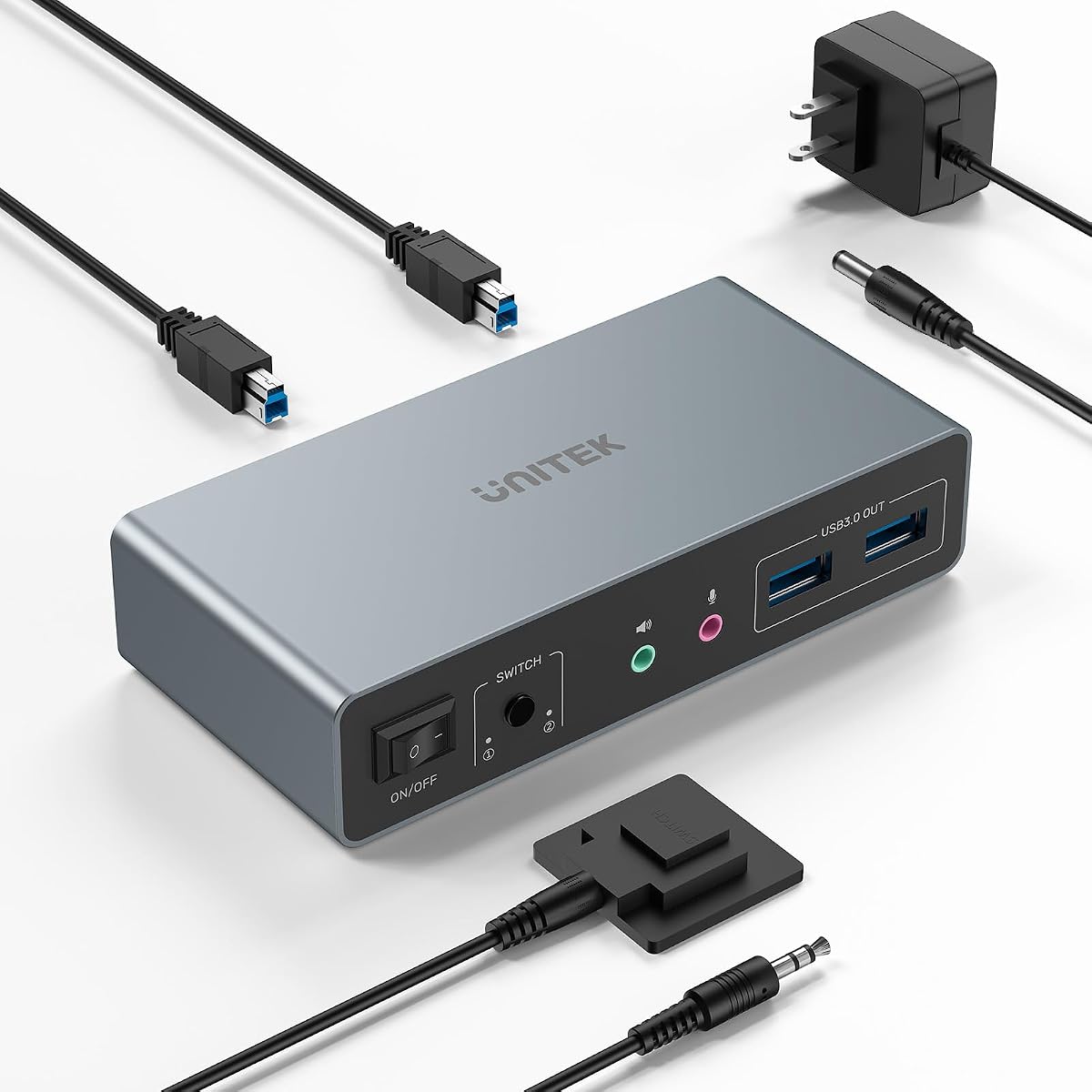
The Unitek KVM Switch allows you to connect two computers to dual monitors and USB peripherals seamlessly. It holds a strong rating for its versatility in supporting both HDMI and DisplayPort inputs. This flexibility makes it ideal for mixed setups where different computers may use different video standards.
We may earn a commission when you buy through this link, at no additional cost to you.
Key strengths include its support for 4K resolution at 60Hz and four USB 3.0 ports for peripheral sharing. The device ensures stable performance with a dedicated 5V 2A power adapter. Users appreciate the ability to switch via a front button or wired remote, keeping the desktop organized.
Trade-offs include the lack of hotkey switching, requiring manual button presses. Additionally, it is designed for desktop hosts only, not laptops. These limitations are acceptable for stationary workstations prioritizing video quality and peripheral flexibility.
This model is best for users needing dual interface support and high resolution. It offers a robust solution for home offices and professional workstations. We recommend it for anyone needing reliable dual-monitor control with flexible input options.
Supports both HDMI and DisplayPort for maximum compatibility with various PC configurations.
Four USB 3.0 ports allow fast data transfer for drives and peripherals across two systems.
We may earn a commission when you buy through this link, at no additional cost to you.
The Ouluoa KVM Switch offers impressive value with 4K resolution support at 60Hz. It features a smart EDID copy function that prevents window rearrangement when switching inputs. This makes it a favorite for users who need reliable performance without breaking the bank.
We may earn a commission when you buy through this link, at no additional cost to you.
Strengths include its dedicated 12V power supply, ensuring stability even with power-hungry peripherals. The four USB 3.0 ports provide ample connectivity for printers and external drives. Users find the setup intuitive and the switching seamless via the front panel or remote.
Trade-offs include HDMI-only compatibility, limiting its use to HDMI-equipped devices. Also, it requires computers to have dual HDMI ports for dual-monitor mode. These constraints are minor given the competitive pricing and feature set.
Best for budget-conscious buyers needing high-quality dual-monitor switching. It suits home offices and remote workstations effectively. We recommend verifying your PC has dual HDMI outputs before purchasing for optimal results.
Prevents desktop window rearrangement by maintaining monitor identification during input switches.
Includes a 12V adapter to guarantee stable performance with high-power USB devices.
We may earn a commission when you buy through this link, at no additional cost to you.
This KVM Switch delivers premium visual performance with support for 8K at 60Hz and 4K at 120Hz. It allows independent content on both monitors or identical displays, offering flexibility for creative work. The build quality supports stable signal transmission for demanding applications.
We may earn a commission when you buy through this link, at no additional cost to you.
Strengths include four USB 3.0 ports for high-speed data transfer and a dedicated 12V adapter. The external power design ensures USB devices like hard disks work reliably. Users can switch via panel buttons or the included wire controller for convenience.
Trade-offs include the requirement for computers with two HDMI output ports to enable dual-monitor functionality. It also comes at a higher price point than standard models. These factors are justified for users needing top-tier resolution capabilities.
Ideal for professionals requiring ultra-high resolution and extended display modes. It serves designers and gamers well. We recommend it for high-end workstations prioritizing visual fidelity and reliable USB connectivity.
Supports 8K and 4K at 120Hz for crystal-clear visuals in professional workflows.
Supports both copy mode for presentations and extension mode for multitasking.
We may earn a commission when you buy through this link, at no additional cost to you.
This model offers similar ultra-high resolution capabilities to the premium pick. It supports 8K at 60Hz and provides a reliable hub for USB peripherals. The switch supports both wired controllers and panel buttons for user convenience. It is designed for desktop computers with dual video outputs.
We may earn a commission when you buy through this link, at no additional cost to you.
Strengths include the inclusion of a 12V power adapter for stable operation. The USB 3.0 hub enables fast data transfer for multiple devices. Users find the switching simple and effective for daily workflows involving multiple PCs.
Trade-offs involve the lack of hotkey support and the restriction to desktop PCs. It does not support passive adapters for video transmission. These limitations are acceptable for users who prefer button-based control.
Best for users needing 8K support without the premium price tag. It suits home offices and creative studios. We recommend checking PC graphics card outputs before installation.
Provides panel buttons and a wired remote for flexible switching access.
External power ensures USB devices function correctly without interruption.
We may earn a commission when you buy through this link, at no additional cost to you.
This switch is tailored for users needing high refresh rate displays via DisplayPort. It supports up to 4K at 144Hz, making it ideal for gaming or motion-heavy tasks. The device includes a remote controller for easy access. It manages two computers effectively with extensive USB support.
We may earn a commission when you buy through this link, at no additional cost to you.
Strengths include the ability to share four USB devices and support for extended desktop modes. The 12V power adapter ensures stable performance for external hard drives. Users appreciate the organized cable management facilitated by the remote switch.
Trade-offs include the need for dual DisplayPort outputs on computers and no hotkey switching. It does not support laptop single-monitor setups for dual output. These factors are specific to its design for desktop high-performance workflows.
Best for gamers and video editors needing high refresh rates. It suits workstations with DisplayPort monitors. We recommend verifying your PC has dual DisplayPort outputs before buying.
Supports up to 144Hz refresh rates for smooth motion in gaming and video.
Includes a wired remote to place the switch discreetly under the desk.
We may earn a commission when you buy through this link, at no additional cost to you.
This KVM Switch features an adaptive EDID function to maintain stable image transmission. It supports 8K resolution at 60Hz and simplifies setup with plug-and-play compatibility. The device includes a wired remote for convenient switching. It aims to prevent screen freezes during input changes.
We may earn a commission when you buy through this link, at no additional cost to you.
Strengths include its zero-installation design and stable performance across operating systems. The USB 3.0 ports provide fast data transfer for connected devices. Users find the adaptive EDID helpful for avoiding configuration issues.
Trade-offs include having only three USB 3.0 ports instead of four. It also requires high-quality HDMI 2.1 cables for maximum resolution. These constraints are manageable for most standard workstation setups.
Best for users valuing ease of use and adaptive features. It suits general office and creative work. We recommend ensuring you have compatible high-speed cables for best results.
Adjusts display parameters automatically to prevent screen distortion.
No drivers needed for instant setup across Windows, Mac, and Linux.
We may earn a commission when you buy through this link, at no additional cost to you.
The Greathek KVM Switch offers a cost-effective solution for dual-monitor setups. It supports 4K at 60Hz and includes EDID emulation to simplify switching. The device is designed to dissipate heat effectively. Users can switch via panel buttons or a remote.
We may earn a commission when you buy through this link, at no additional cost to you.
Strengths include its ability to maintain window positions during switching. The three USB 3.0 ports are sufficient for common peripherals. Users appreciate the design for sustained use without overheating.
Trade-offs include the lack of an included power adapter and fewer USB ports. It relies on a 5V external input for stability. These factors are minor for basic home office needs.
Best for budget-focused buyers needing reliable 4K performance. It suits small offices and home setups. We recommend checking for adapter availability before purchase.
Helps each computer retain display configuration during switches.
Includes wired remote to keep the main unit hidden and organized.
We may earn a commission when you buy through this link, at no additional cost to you.
This Unitek switch simplifies cabling by using one DisplayPort cable per computer for dual outputs. It supports 4K at 60Hz and features a compact aluminum housing. The device ensures fast switching without lag. It is designed specifically for desktop computers.
We may earn a commission when you buy through this link, at no additional cost to you.
Strengths include its ability to reduce cable clutter compared to traditional switches. The USB-C port adds modern connectivity options for charging. Users find the build quality excellent for heat dissipation.
Trade-offs include the lack of HDMI inputs and incompatibility with laptops. It strictly requires dual-monitor capable desktops. These limitations are acceptable for desktop-only setups.
Best for users with DisplayPort monitors and dual output capability. It suits clean, organized workstations. We recommend verifying your PC supports dual-monitor single-DP output.
Uses one DisplayPort cable per computer for dual monitor output.
Includes a USB-C port for fast data transfer and charging.
We may earn a commission when you buy through this link, at no additional cost to you.
This KVM Switch includes an 8K braided HDMI cable for immediate use. It supports ultra-high resolutions and uses a Genesys Logic chipset for stability. The metal housing offers durability and heat dissipation. Users find it convenient for quick deployment.
We may earn a commission when you buy through this link, at no additional cost to you.
Strengths include four USB 3.0 ports for fast data transfer. The included remote allows for easy placement of the main unit. Users appreciate the durable build quality and comprehensive accessory package.
Trade-offs include the need for an external power adapter for high-power devices. It may require careful cable management. These are minor compared to the inclusion of necessary cables.
Best for users wanting an all-in-one solution. It suits home and office setups. We recommend checking power requirements before connecting high-demand devices.
Includes a braided HDMI cable for immediate setup convenience.
Metal housing ensures longevity and efficient heat dissipation.
We may earn a commission when you buy through this link, at no additional cost to you.
This model is identical to the third review and focuses on high refresh rates via DisplayPort. It supports 4K at 144Hz and offers robust peripheral sharing. The device supports extended desktop modes for productivity. It includes a remote for convenient switching.
We may earn a commission when you buy through this link, at no additional cost to you.
Strengths include high data transfer speeds and stable operation. The remote helps organize cables effectively. Users appreciate the ability to manage four USB devices simultaneously.
Trade-offs involve needing dual DisplayPort outputs and lacking hotkey support. It is tailored for desktop use. These constraints fit high-performance needs.
Best for demanding users needing fast refresh rates. It suits gaming and editing. We recommend verifying PC compatibility for best performance.
Supports up to 144Hz refresh rates for smooth, responsive visuals.
Remote controller keeps the main unit hidden for a tidy desk.
We may earn a commission when you buy through this link, at no additional cost to you.
Selecting the right KVM switch requires understanding your specific technical needs and setup constraints.
Ensure the KVM switch supports your monitor's native resolution and connection type. HDMI and DisplayPort options vary by model, with some supporting 8K and others 4K at high refresh rates.
Check that your computers have the necessary output ports for dual-monitor setups.
Look for USB 3.0 ports to ensure fast data transfer for peripherals like external drives and printers. Most quality models offer three to four USB ports for comprehensive sharing.
Confirm the USB hub supports your specific peripheral types and power requirements.
Evaluate how the KVM allows you to switch between computers, using panel buttons, wired remotes, or hotkeys. Some models provide remote controllers for a cleaner desk setup.
Choose a method that fits your workflow preferences and accessibility needs.
Many dual-monitor KVM switches require external power adapters to maintain stable performance with high-power USB devices. Internal power may not suffice for hard drives or scanners.
Verify if the adapter is included and matches your power needs.
EDID emulation helps maintain consistent display configurations when switching inputs. This prevents windows from rearranging and reduces reconnection delays.
Prioritize models with smart EDID features for smoother multitasking.
Confirm the KVM switch supports your operating systems like Windows, Mac, or Linux. Most modern switches are plug-and-play but may vary in driver requirements.
Check compatibility notes for specific OS versions to avoid issues.
Consider the length of included HDMI or DisplayPort cables to ensure they reach your monitors comfortably. High-quality cables are essential for maintaining signal integrity.
Invest in premium cables if the included ones are too short for your setup.
Balance the feature set against your budget. Premium models offer higher resolutions and robust builds while budget options provide essential functionality.
Choose a model that meets your core needs without unnecessary extras.
To install your KVM switch, connect each computer to the input ports using HDMI or DisplayPort cables and attach the USB cable. Connect your monitors to the output ports and attach peripherals to the USB ports.
Power the KVM switch with the included adapter if required. Most units allow you to switch between computers via panel buttons or a wired remote. Ensure all connections are secure before booting your systems.
To care for the device, keep it in a well-ventilated area to avoid overheating. Avoid excessive bending of cables and use surge protectors to protect the unit from power spikes.
Yes, many KVM switches support dual monitors if each computer has two video output ports. Ensure your computer has the necessary ports and supports extended or copy modes.
Not all KVM switches support laptops. Check the product's compatibility notes. Some require desktops only, while others allow laptop connections if they support dual output via HDMI.
EDID emulation helps your computer recognize monitors consistently across switches. It prevents window rearrangement and reduces reconnection delays when changing inputs.
Most dual-monitor KVM switches require external power for stable performance. Internal ports may not provide enough power for high-demand USB devices like external drives.
No, cables are required to connect computers and peripherals. However, you can switch inputs without physically disconnecting cables using buttons or remotes.
Most modern KVM switches are plug-and-play and do not require drivers. Check the product details to confirm compatibility with your operating system for seamless use.
Maximum resolution depends on the model. Some support up to 8K at 60Hz, while others support 4K at 144Hz. Verify your monitor and computer specs for compatibility.
Keep the KVM switch in a well-ventilated space and avoid covering it. Ensure proper cable management to maintain airflow around the device.
Our top picks offer a range of features from 8K support to budget-friendly options. The Unitek and Ouluoa models stand out for their value and reliability in dual-monitor setups.
When choosing a KVM switch, prioritize resolution support, USB speed, and stability. Ensure your computers have the necessary ports and power capabilities for smooth operation.
Prices change frequently, so verify current offers before purchasing. Use this guide to find a reliable solution that fits your specific needs and budget constraints.